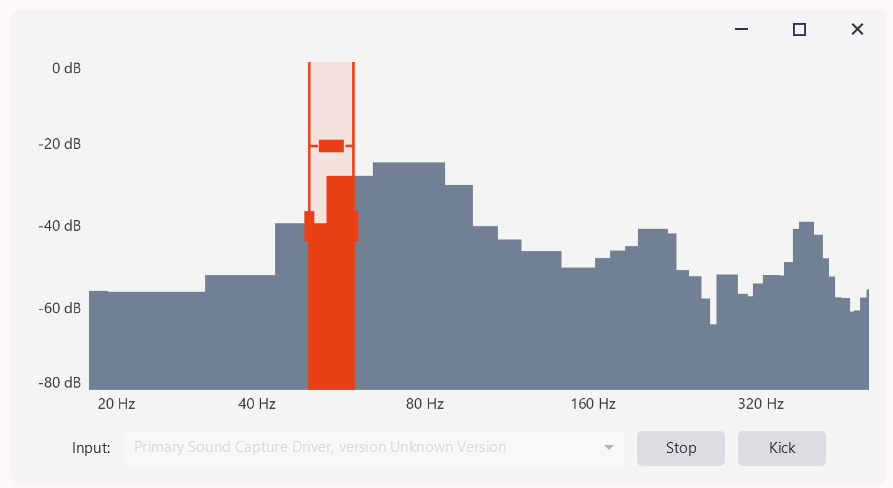
The Kick Analyser listens to incoming audio, detects the kick drum, and uses those detections to trigger effects in time with the music. Any effect set to “Use Kick” fires on each kick the analyser hears - the audio equivalent of tapping the tempo, but automatic and locked to the beat.
Open it from the Masters section on the right side of the main window with the “Kick Analyser” button. This opens a resizable window titled “SDC - Kick Analyser” that floats above the main interface; its size and position are remembered between sessions.
Selecting an Input and Starting
Along the top of the window are an “Input:” dropdown for choosing your audio input device, a “Start” button that begins listening (it changes to “Stop” while running), and a “Kick” indicator that flashes red each time a kick is detected. You can also click the “Kick” indicator yourself to fire a manual test kick.
The Spectrum Display
The main area shows a live frequency spectrum from 20 Hz to 500 Hz, with a decibel scale from -80 dB up to 0 dB on the left. Across the low end is a colored band marking the frequency range the analyser is watching for kicks, and a horizontal threshold line marking how loud a sound in that band must be to count as a kick.
Tuning Detection
You set both the band and the threshold directly on the spectrum. Drag either edge of the colored band to widen or narrow the frequency range, or drag the middle of the band to move the whole range while keeping its width. Drag the threshold line up to make detection less sensitive (only louder kicks register) or down to make it more sensitive. You can also hover inside the band and use the scroll wheel to nudge the threshold by 1 dB at a time. By default the band covers 75–90 Hz with a threshold of -32 dB, which suits a typical kick drum.
Using Kick to Trigger Effects
Many effects offer a speed mode called “Use Kick” alongside “Use BPM”. Selecting it makes that effect advance one step on every detected kick instead of running on a timer or on the BPM. “Use Kick” is available on Dimmer Effect 3, the color wheel effects (Color W1/W2 Effect 1 and 2), the gobo wheel effects (Gobo W1/W2), and the chases. The choice is saved per effect as part of each scene and palette, so a saved look recalls its kick setting along with everything else. (The Dimmer Kick effect is always driven by the analyser, so it has no separate “Use Kick” option.)
Tip: Start with the default 75–90 Hz band and lower the threshold gradually while the music plays until the “Kick” indicator flashes cleanly on each beat without false triggers in between.