If you don't have a GDTF file for your fixture and don't want to create one, SDC can create a basic fixture file for it using the built-in SDC File Manager. However, this file will not contain information about color and gobo attributes, and as a result, effects that rely on auto color and gobo attributes cannot be used.
Creating an SDC File
To create an SDC file, go to the Add Fixture page and click "Manage SDC Files".

A separate window opens - the SDC File Manager. This is where you map your fixture's DMX channels to SDC's known attributes. The window shows 13 rows of channel fields, arranged in pairs. For each attribute your fixture supports, enter the DMX channel number in the corresponding text field:
Row 1: Dimmer Coarse, Dimmer Fine
Row 2: Pan Coarse, Pan Fine
Row 3: Tilt Coarse, Tilt Fine
Row 4: Pan Range, Tilt Range
Row 5: Gobo W1, Gobo W2
Row 6: Gobo W1 Rot., Gobo W2 Rot.
Row 7: Color W1, Color W2
Row 8: Focus, Zoom
Row 9: Red, Green
Row 10: Blue, White
Row 11: Amber, UV
Row 12: Shutter, Prism
Row 13: Prism Rotation
You don't need to fill out all the channels used by the fixture - only the ones you want SDC to recognize. The "Total number of channels" field at the bottom is required.
Below is an example for a basic fixture using 12 channels.

When you're done adding the channels, click "Save as" and save the file somewhere on your computer. The file is saved in SDC's own .sdcff format.
You can also load a previously saved .sdcff file into the SDC File Manager by clicking "Load". This populates all the channel fields with the saved values, making it easy to reuse or modify an existing SDC file.
Adding Fixtures with an SDC File
Once your SDC file is saved, close the SDC File Manager, then click "Select SDC File" on the Add Fixture form. Choose the .sdcff file you just saved. The file name appears in the Loaded File" field, and the DMX Mode dropdown is automatically disabled since SDC files don't have multiple modes.
Fill out the remaining form fields:
Fixture Type ID - a short identifier for the fixture type, up to 12 characters (for example "CPS" or "Sharpy"). All fixtures of the same model should share the same Type ID.
Fixture ID Color - a color-only dropdown used to visually identify this fixture group throughout SDC. The selected color appears on fixture type labels in Fixture Faders and elsewhere. Twenty colors are available. The default is a dark gray.
Fixture Name - a descriptive name, for example "Sharpy 1 stage left". This name appears when hovering over a Fixture Type ID.
Fixtures Number - how many fixtures of this type to add. SDC creates them in sequence, each using the next available DMX addresses.
DMX Universe - which universe to assign these fixtures to.
Starting address - the DMX start address for the first fixture. Must be between 1 and 512. Additional fixtures follow sequentially based on the total channel count you specified in the SDC File Manager.
Enable Virtual Dimmer - a checkbox that enables a software-based dimmer for RGB-only fixtures that lack a physical dimmer channel. When enabled, a "VDim" fader appears on the Fixture Faders page, and the Grand Master can control the fixture's brightness.
This is what it should look like when you're adding fixtures.
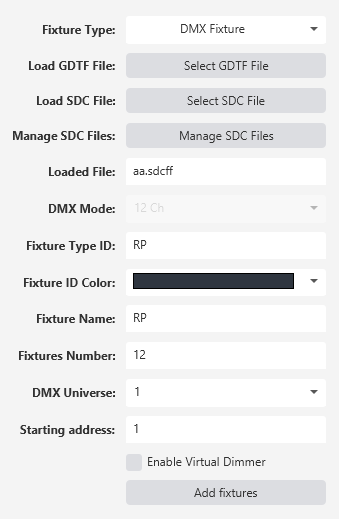
When you click "Add fixtures", SDC validates every field. If anything is missing or invalid, a warning message appears explaining the problem.
After Adding Fixtures
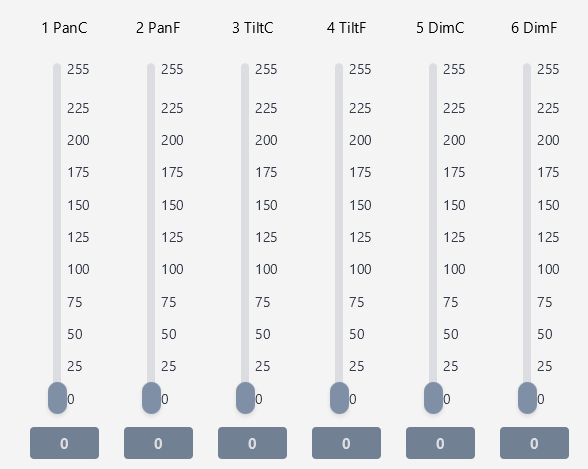
If you go to Fixture Faders, you'll notice that faders have been added for the newly added fixture, and the channel names correspond to those you specified when creating the SDC fixture file.
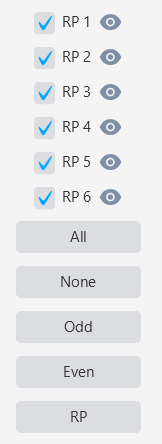
On the right side of the Fixture Faders page, you can select which fixtures to control using checkboxes. Click the eye icon next to a fixture's name to read the current DMX values back into the faders. This allows you to see what your fixtures are doing.
The left side of the Add Fixture page also shows a table of all added fixtures, with columns for Fixture Number, Fixture Name, Universe, and Channel Interval.
Tips
Use distinct Fixture ID Colors for different fixture types. This makes it much easier to identify fixture groups at a glance in Fixture Faders, especially when using the "All Types" view.
If you're adding RGB-only fixtures (like LED pars without a physical dimmer channel), enable the Virtual Dimmer checkbox. This gives you brightness control through both the VDim fader and the Grand Master.
When adding multiple fixtures of the same type, you only need to enter the starting address for the first one. SDC automatically calculates the DMX addresses for each additional fixture based on the total channel count from your SDC file.
While SDC files work well for basic fixtures, consider creating a GDTF file when you have time. The GDTF format enables auto color and gobo effects - features that are not available with SDC files.