Adding a Fixture with a GDTF File
Once you've downloaded the GDTF file, go to the Add Fixture page and click "Select GDTF File". A file chooser opens, filtered to .gdtf files. Select the file from your computer. SDC now reads the GDTF file and the file name appears in the read-only "Loaded File" field, and the "DMX Mode" dropdown populates with all modes found in the file. Choose the mode that matches your fixture's physical DIP switch or menu setting.
Fill out the remaining form fields:
Fixture Type ID - a short identifier for the fixture type, up to 12 characters (for example "CPS" or "Sharpy"). All fixtures of the same model should share the same Type ID. This is the label that appears on fixture type buttons throughout SDC.
Fixture ID Color - a color-only dropdown used to visually identify this fixture group. The selected color appears on fixture type labels in Fixture Faders and elsewhere. Twenty colors are available. The default is a dark gray.
Fixture Name - a descriptive name, for example "Sharpy 1 stage left". This name appears in fixture selection checkboxes.
Fixtures Number - how many fixtures of this type to add. SDC creates them in sequence, each using the next available DMX addresses.
DMX Universe - which universe to assign these fixtures to. By default, USB-to-DMX devices use DMX Universe 1, and this setting cannot be changed for USB devices.
Starting address - the DMX start address for the first fixture. Must be between 1 and 512. Additional fixtures follow sequentially based on the channel count defined in the GDTF mode.
Enable Virtual Dimmer - a checkbox that enables a software-based dimmer for fixtures that lack a physical dimmer channel. When enabled, a "VDim" fader appears on the Fixture Faders page, and the Grand Master can control the fixture's brightness.
This is what it should look like when you're adding fixtures.

When you click "Add fixtures", SDC validates every field. If anything is missing or invalid, a warning message appears explaining the problem. When all validation passes, the status shows "Fixtures are being added - Please wait..." and the fixtures are being assigned. The "Add fixtures" button is temporarily disabled during this process to prevent double-clicks.
This is what it should look like once the fixtures have been added.
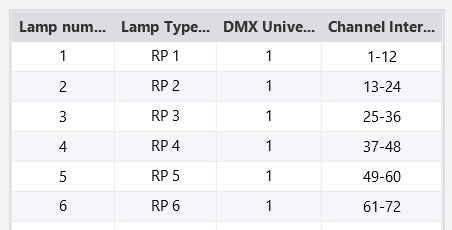
The left side of the Add Fixture page shows a table of all added fixtures, with columns for Fixture Number, Fixture Name, Universe, and Channel Interval.
Auto-Generated Palettes
Once the fixtures have been added from the GDTF file, and if the file contains correct information about color and gobo attributes, the Palettes page will automatically be populated with buttons for the various attributes.
SDC reads color attributes from both Color Wheel 1 and Color Wheel 2 in the GDTF data. Each color attribute that is marked as "use in palettes" gets its own button. The buttons are styled with the fixture's Fixture ID Color, making it easy to identify which fixture type each palette belongs to.

If your GDTF file includes gobo attributes, these will also be shown in the Palettes. Gobo palettes are generated from both Gobo Wheel 1 and Gobo Wheel 2, and each gobo's name from the GDTF file is used as the button label.

Controlling Palette Visibility
There are two ways to control which auto-generated attributes appear on the Palettes page.
The first is per fixture type. On the Palettes page, you'll find a "Show [fixture type]" checkbox for each fixture type. Unchecking it hides all auto-generated palette buttons for that fixture type. Checking it adds the fixture type back to the list and refreshes the palette display. This setting is saved per fixture type name.

The second is per individual attribute. If there are specific color or gobo attributes you don't want to appear in the Palettes, go to the Fixture Config page. There you'll find a table listing each color attribute (from Wheel 1 and Wheel 2) with a checkbox. Unchecking an attribute hides it from the Palettes page. The same applies for gobo attributes - each one has its own "use in palettes" toggle. This gives you fine-grained control over exactly which colors and gobos appear as palette buttons.

These per-attribute toggles also have a separate "use in effects" flag, which controls whether the attribute is included when auto-color or auto-gobo effects cycle through the available options.
Fixture Faders
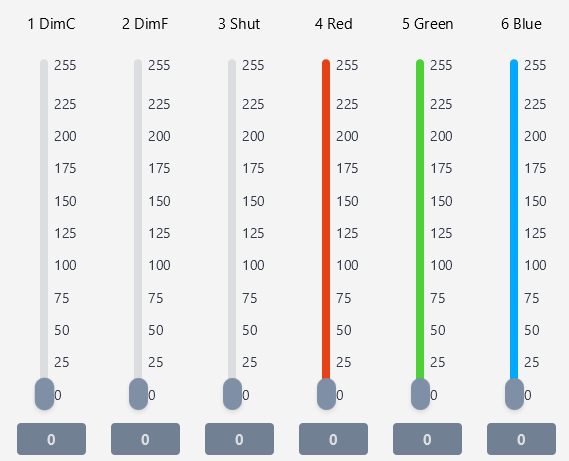
If you head over to Fixture Faders, you'll notice that faders for the added fixtures have been automatically created. Each channel defined in the GDTF mode gets its own fader, with the channel name abbreviated to fit (for example "DimC" for Dimmer Coarse, "PanC" for Pan Coarse). Color-related faders (Red, Green, Blue, White, Amber, UV) are color-coded to match their function.
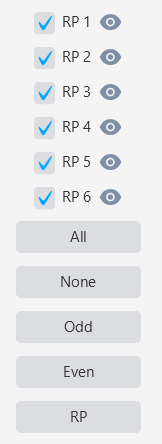
On the right side, you can select which fixtures to control using checkboxes. Click the eye icon next to a fixture's name to read the current DMX values back into the faders. This allows you to see what your fixtures are doing at any point.
Tips
When selecting a GDTF file, make sure to choose the correct DMX mode. If your fixture is set to a 12-channel mode but you select a 16-channel mode in SDC, the channels won't align and your fixture will behave unpredictably.
Use distinct Fixture ID Colors for different fixture types. This makes it much easier to identify fixture groups at a glance in Fixture Faders (especially in "All Types" view) and on the Palettes page where auto-generated buttons carry the fixture's color.
If the GDTF file from gdtf-share.com doesn't work correctly with your fixture, consider creating your own minimal GDTF file following the SDC forum guide. SDC only needs basic channel mapping and attribute definitions - you don't need to fill out every detail the GDTF standard supports.
The auto-generated palettes and the ability to hide individual attributes through Fixture Config give you a clean, focused palette layout. Remove rarely used colors or gobos to keep the Palettes page uncluttered during live shows.