Creating an Account
First, create a free user account at https://gdtf-share.com/ - click "Sign up for free" in the upper right corner. Once your account is created, log in.
Starting a New Fixture
On the first page after logging in, choose "Build fixture".

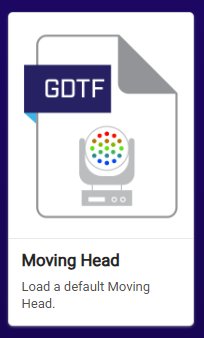
On the first build page, choose "Moving Head".
Fixture Page
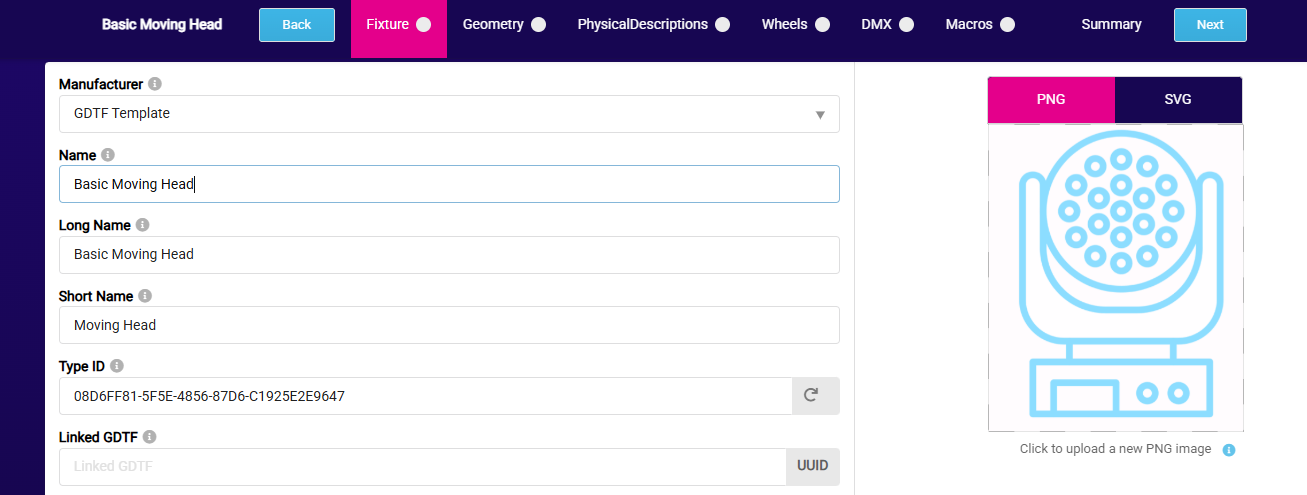
Give the profile a "Name", "Long Name", and a "Short Name". Also type in the "Manufacturer". Since we are creating a very basic file, you don't need to fill out anything else on this page.
Press next.

Geometry and Physical Descriptions Pages
The next two pages are "Geometry" and "Physical Descriptions". Since we are building a very basic file, you can skip both of these and press next on each.
Wheels Page
The "Wheels" page is where you define the color wheels and gobo wheels your fixture has. When first loaded, the section is empty.
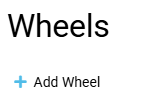
If your fixture has one or more gobo or color wheels, you need to add them now. Hit "Add Wheel" and give the wheel a name.

Now add the individual colors the wheel has (if adding a color wheel). These are called "Wheel Slots". Hit "Add Wheel Slot" to add the first slot. Give the slot a name and select a color. The color you set here will be the border color on the palette button displayed in SDC.


Repeat the above for all colors on your fixture's color wheel.
Do the same for any gobo wheels. You can optionally add an image for each gobo - if you skip this, you'll just see the gobo names in the Palettes.
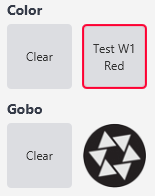
The image below shows how the Wheels section looks when a single color wheel with one red color and a single gobo wheel with one gobo have been added.
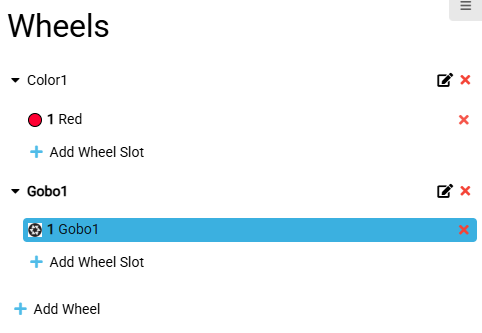
When you have added all color and gobo wheels and their respective slots, press next.
DMX Page
The "DMX" page is where you set up the DMX channels used by your fixture. By default, mode 1 is added with 11 default channels. If the default channels are not suitable, hit the red cross to delete them and start fresh.

With an empty channel map, hit "Add Channel" to add the first channel.

For pan channels, select "Yoke" as Geometry and "Pan" as Attribute.

Set the resolution and assign the coarse and fine channel numbers.

Continue hitting "Add Channel" until all channels your fixture uses have been added.
The next step on the DMX page is to set up the DMX values for color and gobo attributes - for example, which DMX value activates the red color on color wheel 1. Go to "Channel Function" and set "Wheel" to the correct wheel (for example, Color1 for Color Wheel 1).

Find "Add Channel Set" and press that button.
Add each color on the wheel to the channel set, making sure to assign the correct "Wheel Slot" using the dropdown on the far right. In the example below, the red color has been added.

When all channels have been added and colors and gobos have been assigned to their respective channel sets, press next.
Macros and Summary Pages
The next two pages are "Macros" and "Summary". Since we are building a very basic file, you can skip both and press next on each.
Downloading the File
Give your file a "Revision Name" and click OK. The file will then be ready to download.

If you want to make any corrections later, head back to GDTF Share, edit your fixture, press "Next" through each page until you can add a new "Revision Name", and then download the updated file.
Using the File in SDC
When the GDTF file is downloaded, head over to the Add Fixture page in SDC and follow the post titled "Add Fixture - With GDTF File".
Below is what the very basic GDTF file looks like when loaded in SDC - auto-generated palettes with color and gobo buttons, and fixture faders with properly named channels.