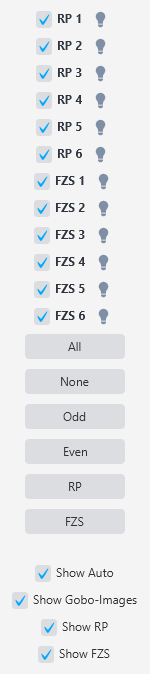
The Palettes page is divided into two halves. The left side shows all your palette buttons organized into categories. The right side has the fixture selection panel (checkboxes, Odd/Even selection, per-type selection) along with display options at the bottom. When you press a palette button, it only applies to the fixtures currently selected on the right side.
Palette Categories
The left side displays palettes grouped under section headings. Each category can contain two types of palettes: automatic palettes generated by SDC (from GDTF fixture definitions and built-in controls) and user palettes that you have saved yourself on the Save & Delete page. The categories appear in this order from top to bottom:
Scene: User-saved scene palettes that recall a complete lighting state.
TimeLine: User-saved TimeLine palettes plus a "Stop" auto-button that stops any running timeline.
Dimmer: Auto-generated "Clear" and "Blackout" buttons, plus any user-saved dimmer palettes.
Shutter: Auto-generated "Clear" button for resetting shutter channels, plus user-saved shutter palettes.
Color: Auto-generated color wheel palettes from your fixtures' GDTF definitions (one button per color position per fixture type), a "Clear" button, plus user-saved color palettes.

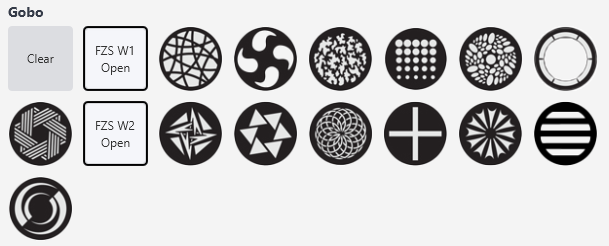
Gobo: Auto-generated gobo wheel palettes from GDTF definitions (one button per gobo per fixture type, optionally showing gobo images), a "Clear" button, plus user-saved gobo palettes.
Zoom: Auto-generated "Clear" button plus user-saved zoom palettes.
Focus: Auto-generated "Clear" button plus user-saved focus palettes.
Prism: Auto-generated "Clear" button plus user-saved prism palettes.
Movement: Auto-generated movement control buttons plus user-saved movement palettes. The auto buttons give you quick access to starting and stopping pan and tilt movement without switching to the Position page:
Start Pan Tilt, Stop Pan Tilt - starts or stops both axes at once.
Start Pan, Start Tilt - starts each axis individually.
Stop Pan, Stop Tilt - stops each axis individually.

Position: Auto-generated "Clear" button plus user-saved static position palettes.
Effect: Auto-generated "Pause Effects" toggle and "Stop Effects" button, plus user-saved effect palettes.
Pixel Strip: Auto-generated "Pause Effects" toggle for pixel strip effects, plus user-saved pixel strip palettes.
Home & Misc: Three auto-generated utility buttons:
Clear Fixture - stops all effects running on the selected fixtures and sets all their DMX channels to 0.
Clear Programmer - clears all changes made via palette buttons and fixture faders while keeping everything set by Scene Faders. This is your "undo" for palette and scene fader actions without affecting your scene fader mix.
Home - sets the dimmer channel of selected fixtures to 255 (full), and for fixtures with pan and tilt, sets those channels to 128 (center position).

Each "Clear" button within a category resets only the channels related to that category (dimmer, color, gobo, etc.) on the selected fixtures.
Fixture Selection
The right side of the Palettes page determines which fixtures are affected when you press a palette button. It works the same as on other SDC pages - checkboxes next to each fixture name - Selections also have additional shortcuts:
Odd / Even: Quickly selects every odd-numbered or even-numbered fixture. This is a fast way to apply different colors to alternating fixtures for a split-color look.
Fixture Type buttons: Each fixture type in your project gets its own selection button (showing the fixture type ID). Pressing it selects only fixtures of that type. This is handy when you want to clear or set attributes for just one type of fixture - for example, clearing the dimmer on your moving heads without affecting your wash lights.
Display Options
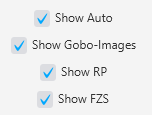
Below the fixture selection panel are checkboxes that control what appears on the Palettes page:
Show Auto: Toggles the visibility of all auto-generated palettes. Uncheck this if you only want to see the palettes you have created yourself. When unchecked, the auto-generated GDTF color and gobo buttons, the movement start/stop buttons, the Clear/Blackout/Home buttons, and all other auto palettes are hidden.
Show Gobo-Images: Toggles whether gobo buttons display the gobo image from the GDTF file. If the images are poor quality or you prefer text-only buttons, uncheck this.
Show [Fixture Type]: When you have multiple fixture types, each type gets its own show/hide checkbox (for example, "Show RP" for a fixture type named RP). Unchecking it hides the auto-generated palettes for that specific fixture type while keeping the others visible.
GDTF Integration
When you add fixtures that use GDTF files with defined color wheel and gobo wheel attributes, those attributes are automatically loaded into the Color and Gobo categories as clickable palette buttons. Each button corresponds to a specific position on a color or gobo wheel for that fixture type.
If a GDTF file contains attributes with errors or more attributes than you need, you have two options. You can uncheck specific attributes on the Fixture Config page (under Fixture Attributes) to remove individual color or gobo entries. Or you can uncheck the per-fixture-type show checkbox on the Palettes page to hide all auto palettes from that fixture type.
MIDI Mapping
Every palette button - both auto-generated and user-saved - is MIDI-mappable. You can assign buttons on a MIDI controller to any palette, giving you physical one-touch recall of your lighting presets during a live show.
Tips
Build your palette library methodically. Start with basic colors, then add gobos, positions, dimmer levels, and effects. A solid palette library is the fastest path to a professional-looking show.
Use Odd/Even selection with color palettes to quickly create split-color looks. Select Odd, press one color, select Even, press another color - you have alternating colors across your fixtures in two clicks.
Clear Programmer is essential during programming. It lets you experiment with palettes, then undo everything back to your scene fader state without losing your mix. Think of it as a safe reset to your baseline.
The Movement auto-palettes on the Palettes page are the same controls found on the Position page. Having them here means you can start and stop movement without leaving the Palettes page during a live show.