
The Views menu contains the following items (in order): Fixture Levels, Fixture Status, Fixture RGB Color, Set Pan & Tilt Invert, Set Attributes To Use In Effects, Set Single DMX Value, Effect Status, Universe Levels, and MIDI Assign. All Views windows remember their position and size between sessions.
Fixture Levels
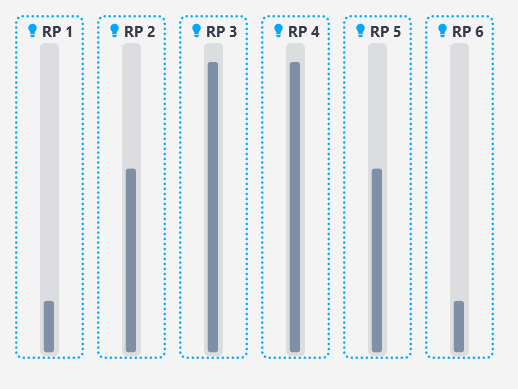
Displays a real-time bar graph of the dimmer output level for each fixture. Each fixture gets a vertical progress bar that rises and falls with its current intensity. This is especially useful when working with dimmer effects - you can see exactly how the effect is driving your fixtures. In the example below, six fixtures are running Dimmer Effect 1 with an offset applied.
Fixture Status
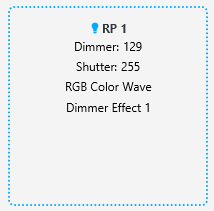
Shows a compact status card for each fixture, displaying the fixture name (color-coded by type), current dimmer level, current shutter value, and a list of which effects are currently running on that fixture. The status updates in real time. This is a quick way to get an overview of what every fixture is doing without having to check each page individually.
The per-fixture effect indicators include: Dimmer Effect 1, Dimmer Effect 2, Dimmer Effect 3, BPM Blackout, Color W1 Effect 1, Color W1 Effect 2, Color W2 Effect 1, Color W2 Effect 2, Gobo W1 Effect, Gobo W2 Effect, RGB Color Wheel, RGB Color Wave, RGB Color Pattern, RGB Color Pixel Mapper, Chase effects, and Pan & Tilt Link.
Fixture RGB Color

Displays the current RGB color output for fixtures having red green and blue channels. This gives you a visual representation of what color each fixture is currently outputting. This view updates in real time, making it useful for verifying that RGB effects and color palettes (RGB) are producing the colors you expect.
Effect Status

Provides a clear summary of all currently running effects across the entire project. Instead of showing per-fixture status, this view lists each effect and whether it is currently active. Effects appear in the list only while they are running and disappear when stopped. This includes all dimmer effects, color wheel effects, gobo effects, RGB effects (Color Wheel, Color Wave, Color Pattern, Pixel Mapper), chases, and the Pan & Tilt Link effect.
Set Pan & Tilt Invert

Opens a table showing the pan and tilt inversion settings for all your fixtures. You can see which fixtures have their pan or tilt channels inverted and toggle the inversion directly from this window. This is the same inversion functionality available on the Fixture Config page, but in a standalone window you can keep open while testing positions - handy when you're hanging fixtures and need to quickly check and adjust inversion without leaving the Position or Palettes page.
Set Attributes To Use In Effects
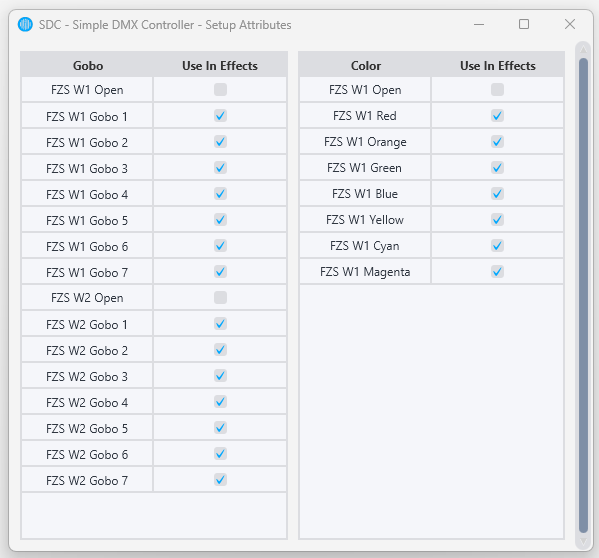
Opens a window with two side-by-side tables - one for gobo attributes and one for color attributes - loaded from your fixtures' GDTF files. Each attribute has a checkbox to include or exclude it from effects that use automatic attribute selection (Color W1/W2 Effects, Gobo W1/W2 Effects). This is the same attribute filtering available on the Fixture Config page, but in a convenient standalone window.
Set Single DMX Value

Opens a small utility window for manually setting a specific DMX channel to a specific value. You select the Universe from a dropdown, enter the Channel number, enter the Value (0-255), and click "Set". This is useful for testing individual channels on a fixture, verifying channel assignments, or quickly overriding a single channel during troubleshooting.
Universe Levels
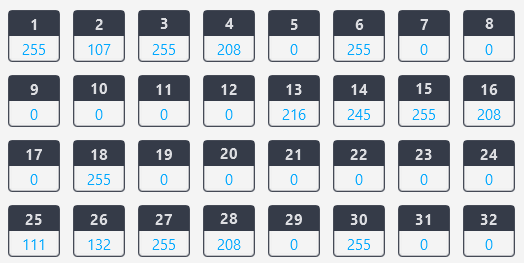
Clicking "Universe Levels" in the Views menu opens a grid of numbered buttons - one for each universe. Click a universe number to open its level window, which displays all 512 DMX channels in that universe with their current output values. Each channel shows its channel number and live value. This is a large-scale overview of the raw DMX data being sent out, useful for verifying that the right values are reaching the right channels.
MIDI Assign
Opens the MIDI assignment window where you can map faders and buttons in SDC to physical controls on your MIDI controller. This is the same MIDI mapping interface accessible from the Settings page, provided here as a shortcut in the Views menu for quick access during programming.
Tips
Keep Fixture Levels open while programming dimmer effects. Seeing the intensity bars react in real time makes it much easier to judge timing, offset, and range settings.
Fixture Status is your go-to for debugging. If a fixture isn't behaving as expected, the status card instantly tells you what effects are running on it, what its dimmer and shutter values are, and whether something unexpected is active.
The Set Single DMX Value window is invaluable when setting up new fixtures. You can test individual channels to verify that your GDTF file or SDC fixture definition has the right channel assignments before building your show.