Art-Net (Ethernet/Wi-Fi)
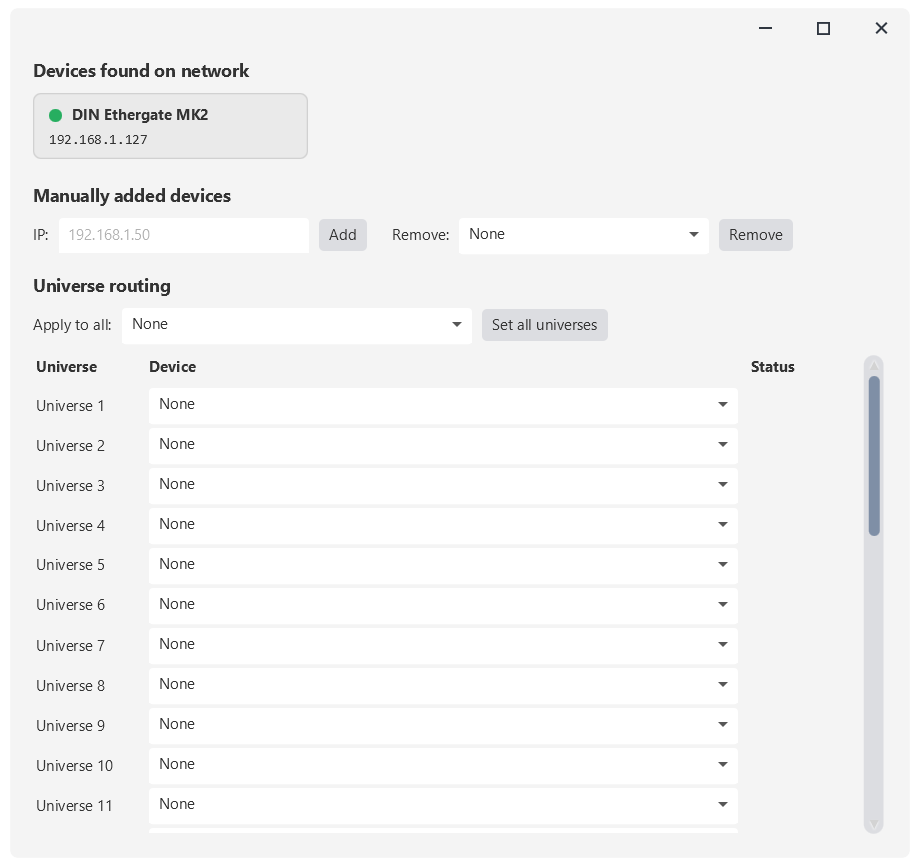
Art-Net devices connect over your local network and work out of the box with SDC - no driver installation needed. This includes Art-Net nodes like the Enttec DIN Ethergate Mk2 and pixel controllers like the Enttec OCTO MK2.
SDC always uses ArtNet Net 0 and ArtNet Subnet 0.
When you launch SDC for the first time, Windows Firewall may show a prompt asking whether to allow SDC to communicate on the network. Click Allow to ensure full Art-Net functionality. If you missed the prompt or clicked Cancel, you can manually allow SDC through Windows Firewall via:
Control Panel → Windows Defender Firewall → Allow an app or feature through Windows Defender Firewall
DMX USB Pro devices (with built-in processor)
DMX USB Pro devices such as the Enttec DMX USB Pro, EUROLITE USB-DMX PRO, and EUROLITE USB-DMX PRO MK2 have a built-in processor that handles the DMX signal. These devices are recognised by Windows automatically as a virtual COM port - no manual driver installation is required in most cases.
In SDC, for USB to DMX devices with a built-in processor, like the Enttec DMX USB Pro, the name in the dropdown will be "DMX USB Pro", but other devices with a built-in processor may be listed as "FT232R USB UART". Select "DMX USB Pro" as the protocol under Settings → USB Settings → Protocol..
Device shows in SDC but DMX is not working?
If your Pro device appears in the device list but DMX output is not working, install the FTDI CDM driver package - this is also listed as an official resource by Enttec for the DMX USB Pro:
1. Go to https://ftdichip.com/drivers/d2xx-drivers/
2. Click "here" to download the Windows 10, Windows 11 and Windows Server driver installer (setup executable)
3. Run the downloaded .exe and follow the installation steps
4. Unplug your device, plug it back in
5. Start SDC
Open DMX devices (no built-in processor)
Open DMX devices - including unbranded dongles and the Enttec Open DMX USB - have no built-in processor. SDC communicates with these devices using the FTDI D2XX interface, which requires the FTDI CDM driver to be installed manually.
Windows may automatically install a basic serial (VCP) driver when you plug one of these devices in, which makes it appear in Device Manager - but this is not sufficient for SDC. The full FTDI CDM driver must be installed separately.
Installing the driver:
1. Go to https://ftdichip.com/drivers/d2xx-drivers/
2. Click "here" to download the Windows 10, Windows 11 and Windows Server driver installer (setup executable)
3. Run the downloaded .exe and follow the installation steps
4. Unplug your device, plug it back in
5. Start SDC
In SDC, for USB to DMX devices with no built-in processor, like the Enttec Open DMX USB, the name in the dropdown will often be "FT232R USB UART". Select "Open DMX" as the protocol under Settings → USB Settings → Protocol.

Still not working after installing the driver?
Windows sometimes caches an older driver version that interferes. To resolve this:
1. Open Device Manager (right-click Start → Device Manager)
2. Find your dongle under Ports (COM & LPT) or Universal Serial Bus controllers
3. Right-click → Uninstall device, and check "Delete the driver software for this device"
4. Unplug the dongle
5. Run the FTDI installer again
6. Plug the dongle back in and restart SDC
Note: if you have other software installed that also uses FTDI devices (e.g. Arduino IDE), it may have installed its own FTDI driver version. The steps above will update it to the latest.
MIDI – Akai APC Mini MK2
The APC Mini MK2 is supported as a MIDI controller in SDC for button and fader mapping. It is recognised automatically by Windows - no driver installation required. Simply plug it in and it will appear in SDC's MIDI settings.